
Excel is the tool most small businesses already have, most accountants expect and most people can open without training. A good Excel template turns that familiarity into something useful: the structure, formulas and formatting are already in place, so you only type the figures you know and the totals, statuses and charts follow.
This guide explains how the free Excel templates on ProTemplates are built, which one fits which job, the handful of Excel skills that make any template easier to use, how to adapt a template safely, and how the same files work in Google Sheets. Every template on this page is a standard .xlsx file with no macros.
All Excel templates
-
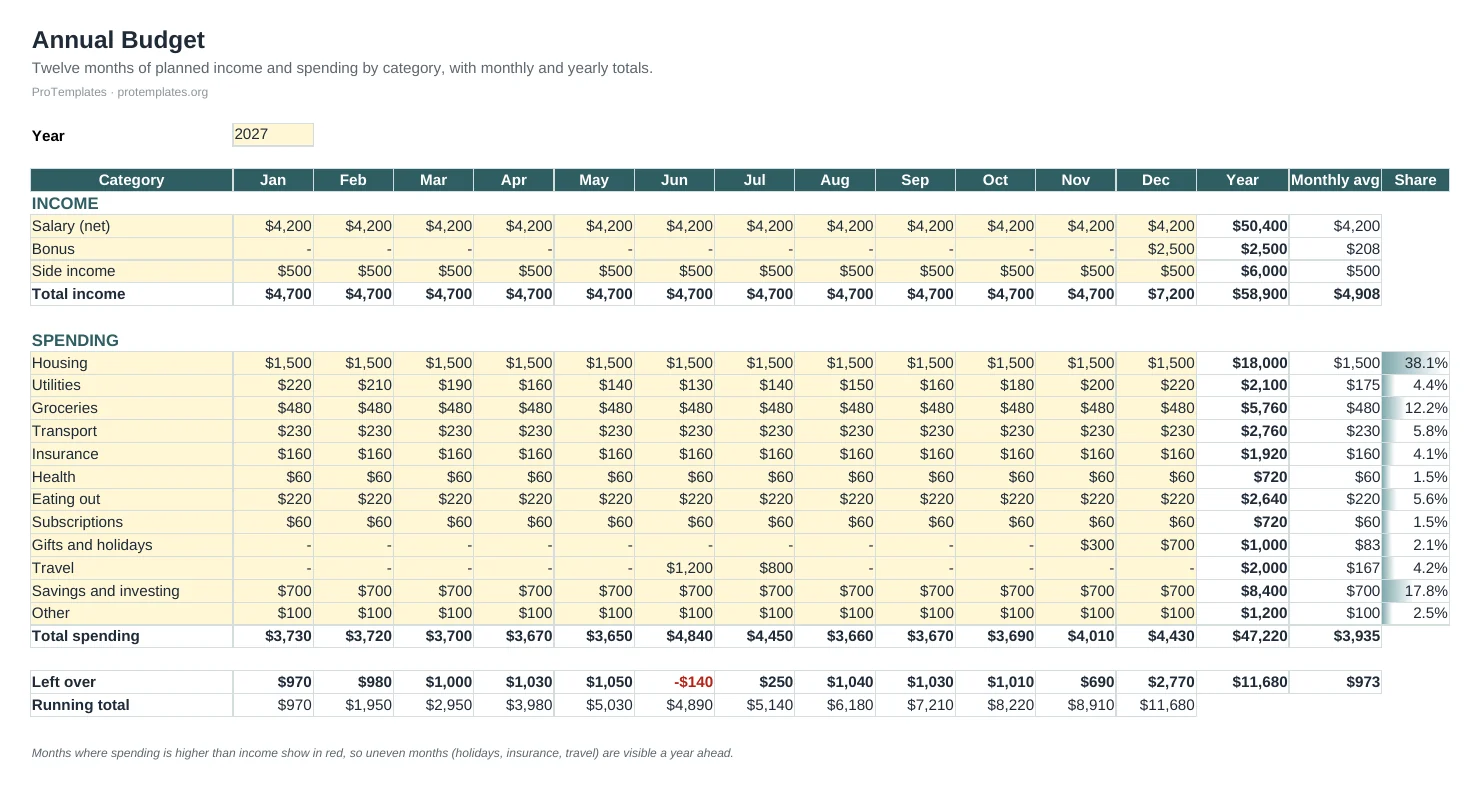
Annual Budget Template for Excel
This annual budget template for Excel lays out twelve months of planned income and spending by category on one sheet. Monthly and…
-

Cash Flow Forecast Template
This cash flow template forecasts twelve months of money coming in and going out. Each month’s closing balance becomes the next month’s…
-
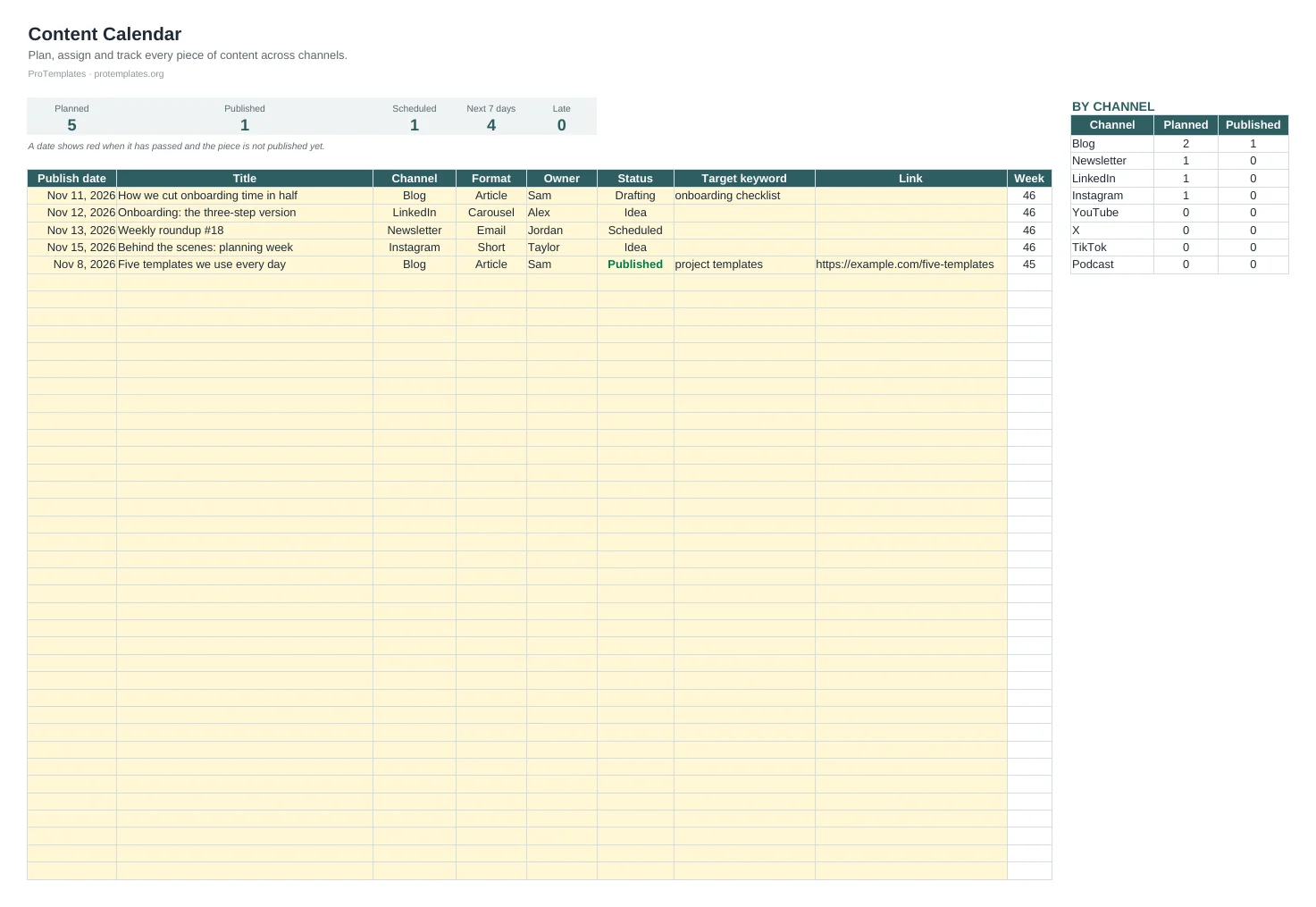
Content Calendar Template
This content calendar template keeps every piece of content in one list with its publish date, channel, format, owner and status. It…
-

Due Diligence Checklist for Buying a Website or SaaS
This due diligence checklist covers what to verify before buying a website, newsletter, SaaS or app: financials, traffic, audience, product, legal, operations…
-
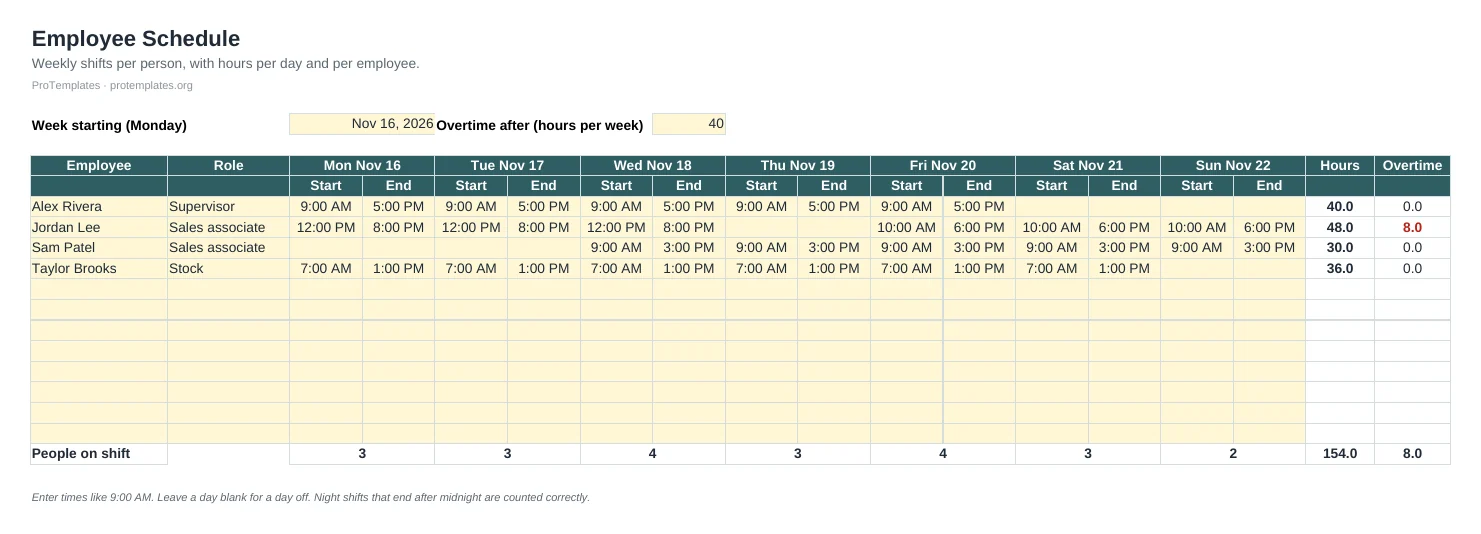
Employee Schedule Template
This weekly employee schedule template lets you plan shifts with a start and end time for each person and each day. Hours…
-
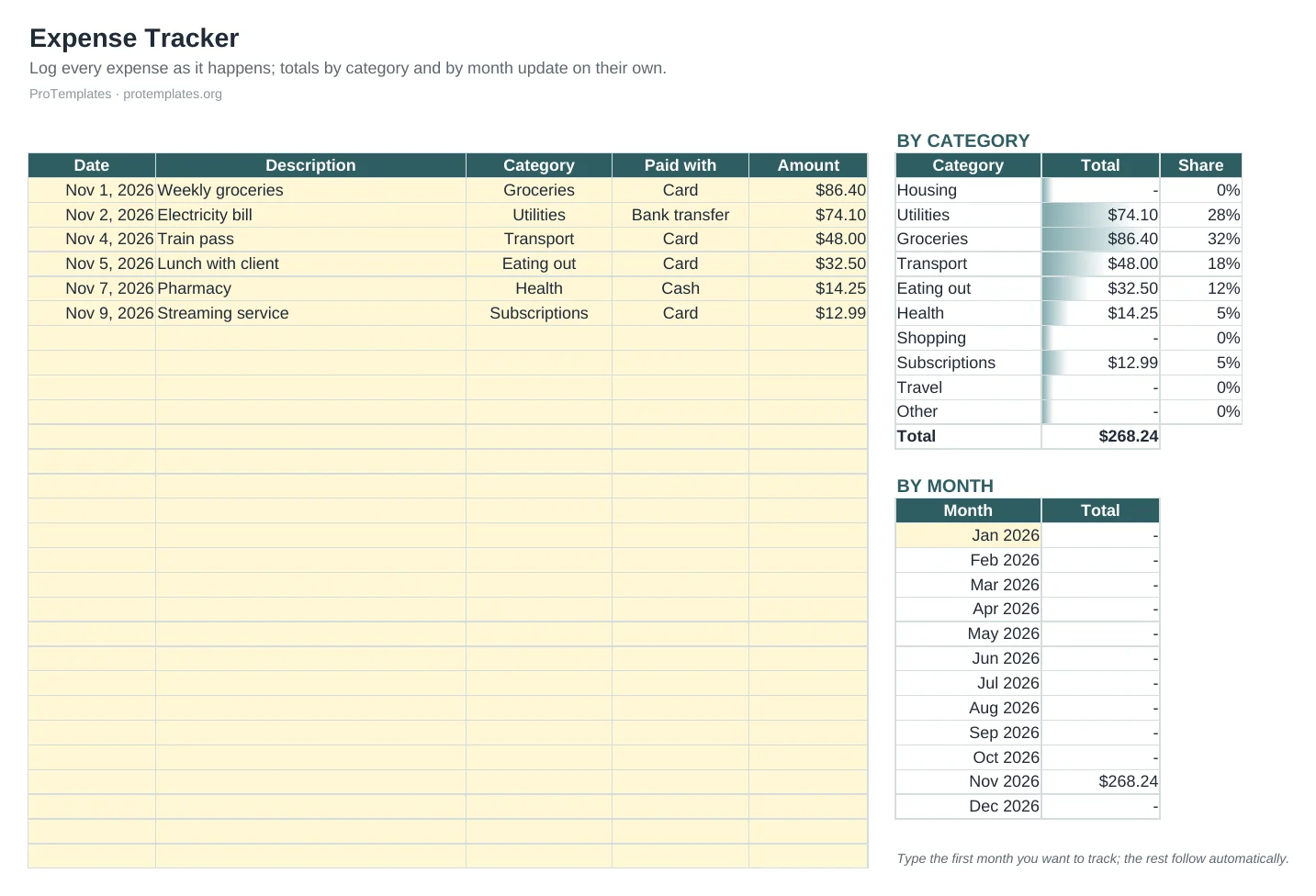
Expense Tracker Template
This free expense tracker template gives you one place to log every purchase with its date, category and payment method. Totals by…
-

Financial Model Template: 5-Year Projection
This financial model template projects five years of customers, revenue, gross profit, operating profit, net profit and cash from a single Assumptions…
-
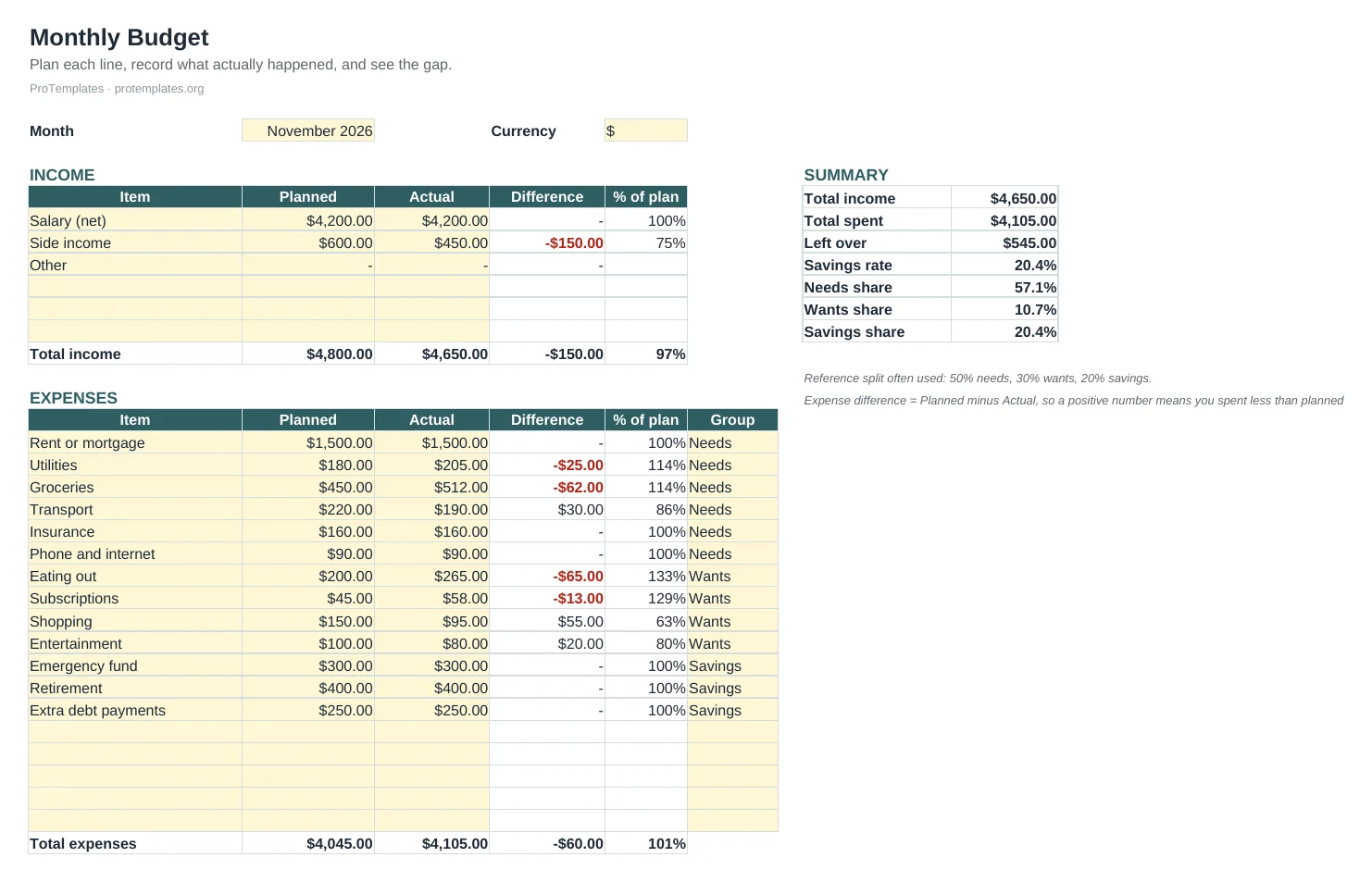
Free Budget Template for Google Sheets
This free budget template for Google Sheets lets you plan each month’s income and spending, record what actually happened and see the…
-
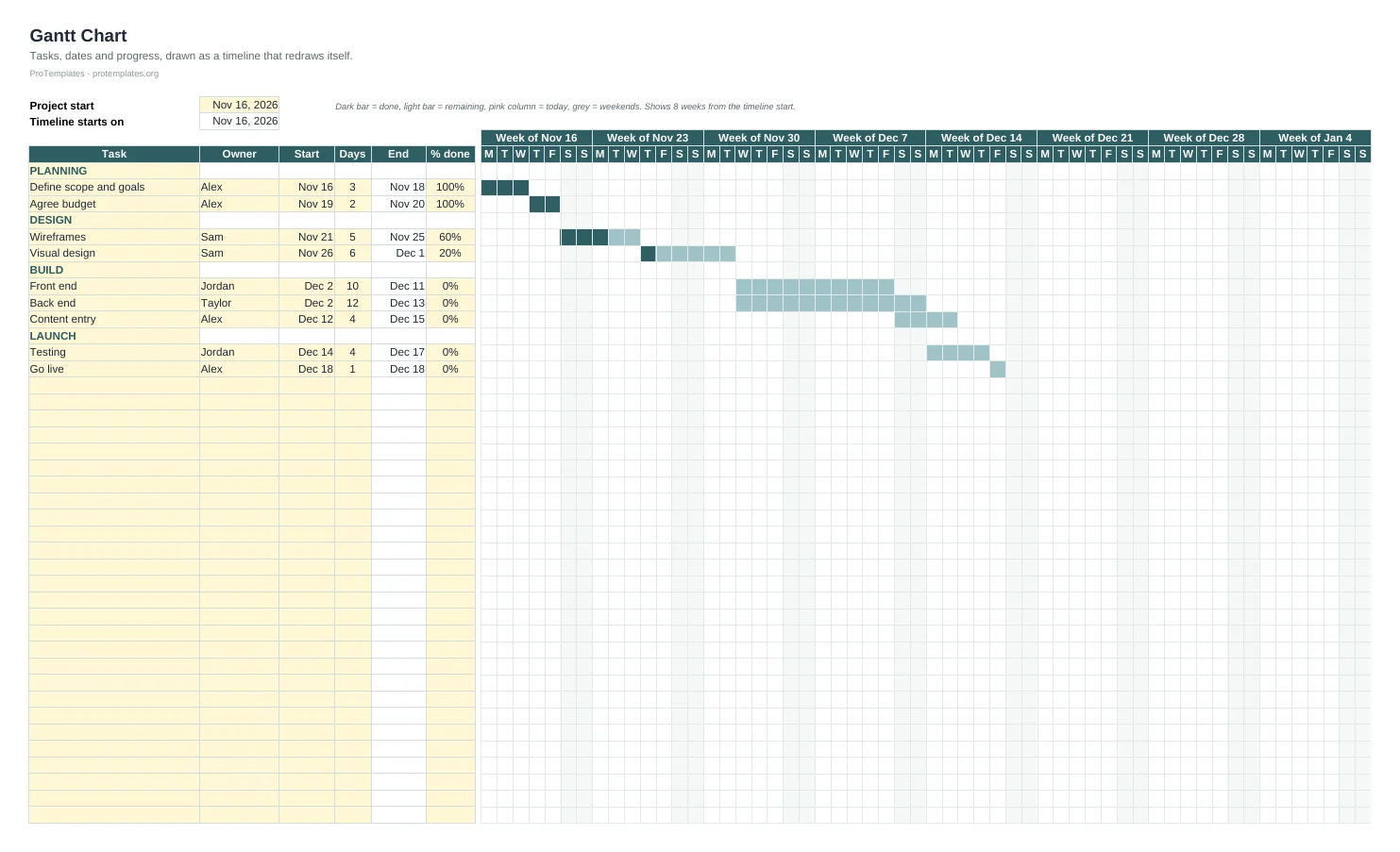
Gantt Chart Template for Excel
This Gantt chart template for Excel draws the timeline for you: enter each task’s start date and duration and the bar appears…
-

Inventory Tracker Template for Excel
This inventory tracker template for Excel keeps stock on hand, unit cost and stock value for every item in one sheet. When…
-
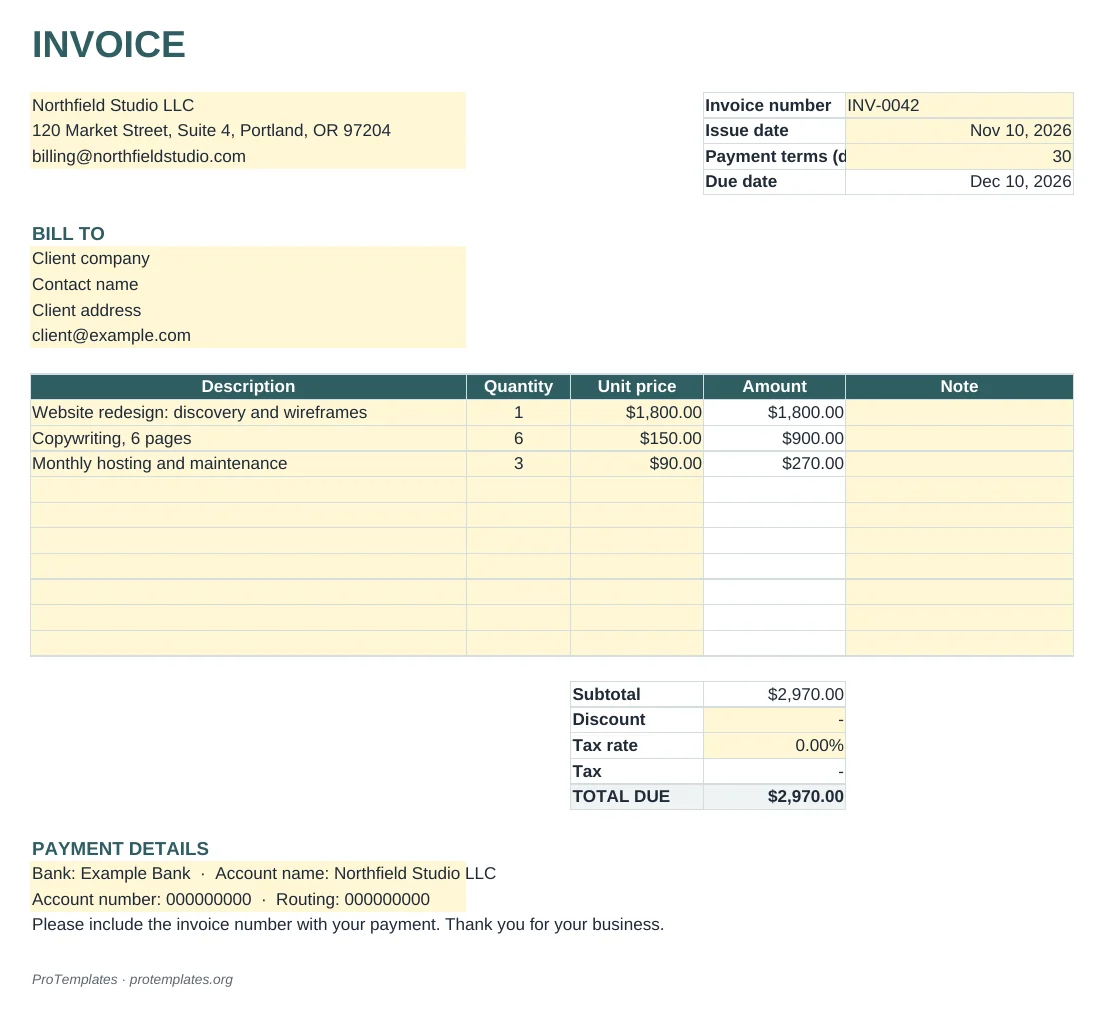
Invoice Template for Excel and Google Sheets
This free invoice template calculates everything for you: each line amount, the subtotal, discount, tax and the total due. The due date…
-

KPI Dashboard Template
This KPI dashboard template tracks up to ten metrics against a monthly target. Enter each month’s result and the sheet calculates year-to-date…
-

Project Tracker Template for Excel
This project tracker template for Excel lists every task with its owner, status, priority, dates and percentage done. Days left count down…
-
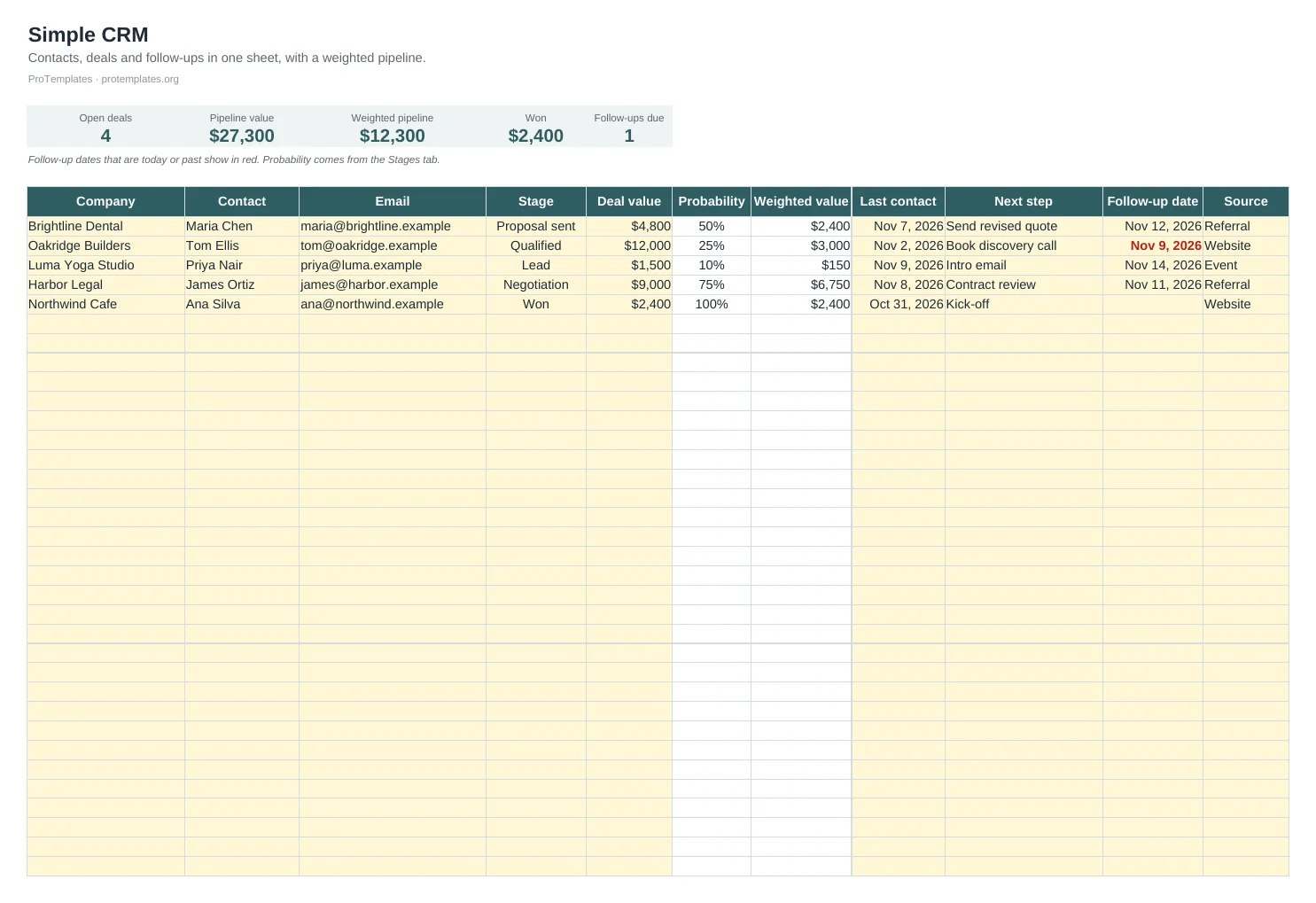
Simple CRM Template for Google Sheets
This simple CRM template for Google Sheets tracks contacts and deals with their stage, value, last contact, next step and follow-up date.…
-
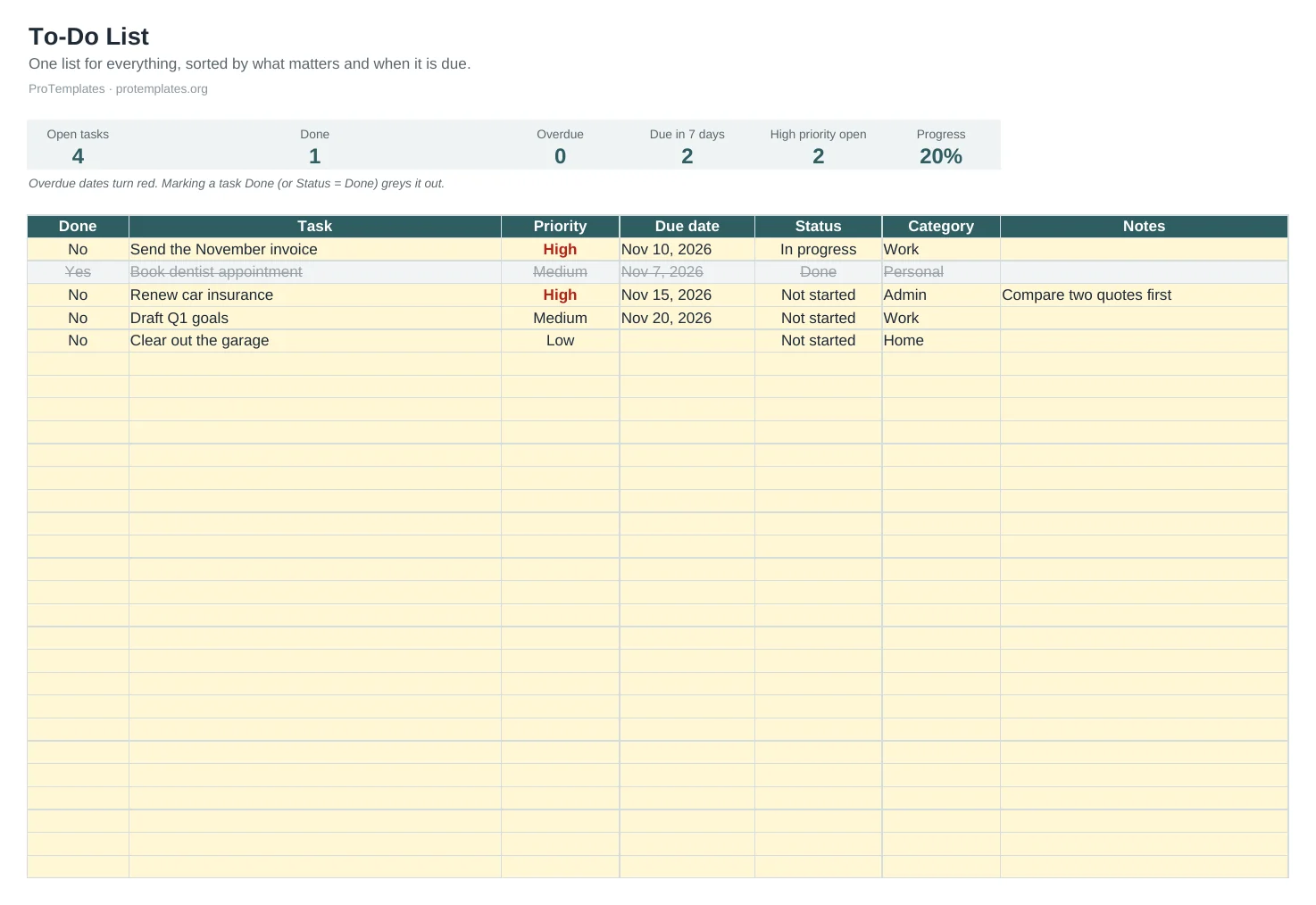
To-Do List Template
This free to-do list template keeps all your tasks in one sortable list with priority, due date, status and category. Overdue dates…
-

Weekly Timesheet Template for Excel
This weekly timesheet template for Excel records time in, time out and break minutes for each day. Hours worked, regular and overtime…
Why Excel is still the default for small business
New tools appear every year, yet small businesses keep coming back to spreadsheets. The reasons are practical. Almost everyone can open an .xlsx file. It works offline. It can be emailed to an accountant, a lender or a partner who uses different software. And when the business changes, you can change the file in minutes rather than waiting for a feature request.
Excel is also generous with space. A single worksheet holds 1,048,576 rows by 16,384 columns, far more than any small business template needs. The real limits are elsewhere: how many people need to edit at once, how much automation you need and how disciplined everyone is about keeping one master copy.
How our Excel templates are built
Every Excel template on ProTemplates follows the same rules, so once you have used one, the others feel familiar:
- Standard .xlsx files. Ordinary formulas only, with no macros, no add-ins and no external connections, so nothing needs enabling and the files open safely.
- Inputs separated from calculations. You type in clearly marked input cells; totals, statuses and charts are calculated for you.
- Example rows. Each template arrives with sample data so you can see how it behaves before you replace it with your own.
- A How to use tab. A short set of steps inside the file, so the instructions travel with it.
- Cross-platform. The same file opens in Excel, Google Sheets, LibreOffice and Numbers without losing its formulas.
Excel templates by job
Pick the template by the job you need done. Each one is described in more detail on its own page and in the topic guides.
Money
- The annual budget lays out twelve months of planned income and spending by category.
- The monthly budget compares plan with actual each month and shows your savings rate.
- The expense tracker records each purchase and summarises by category and month.
- The cash flow forecast projects the bank balance twelve months ahead.
- The financial model projects five years of revenue, costs and profit from one assumptions tab.
- The invoice template calculates line totals, tax and the amount due.
More in the finance templates guide.
Projects and tasks
- The Gantt chart draws the schedule from start dates and durations.
- The project tracker tracks owners, status and progress for up to 80 tasks.
- The to-do list keeps tasks with priorities, due dates and counters.
People, operations and sales
- The employee schedule plans a week of shifts with hours and overtime.
- The weekly timesheet records hours, breaks, overtime and pay.
- The inventory tracker shows stock value and what needs reordering.
- The content calendar schedules content by channel and status.
- The simple CRM tracks deals, stages and follow-ups.
- The KPI dashboard shows up to ten KPIs against target month by month.
- The due diligence checklist organises the checks when buying a website or SaaS.
Five Excel skills that make any template easier
You do not need to be an Excel expert to use these templates, but five everyday features make any spreadsheet easier to work with.
- Freeze panes. Keep the header row and the first column visible as you scroll, from View, Freeze Panes.
- Filter and sort. Turn on filters from the header row to see only one category, owner or status, and sort by date to see what is due first.
- Dropdown lists. Many templates use data validation for status, priority or category. Choosing from a list keeps entries consistent, which keeps the totals right.
- Conditional formatting. Colours for overdue dates, overtime or items to reorder come from rules, not manual formatting. Edit a rule from Home, Conditional Formatting, Manage Rules.
- Show formulas. To see how a figure is calculated, select the cell and read the formula bar, or press Ctrl+` to show all formulas at once.
Formulas worth knowing
A few functions cover most of what small business spreadsheets need. Knowing them helps you understand a template and adapt it with confidence.
- SUM and SUMIFS add up values, with SUMIFS adding only the rows that meet conditions, such as spending in one category and one month.
- COUNTIFS counts rows that meet conditions, such as open tasks for one owner.
- IF returns one result or another, which is how many templates set a status such as “Reorder” or “Overdue”.
- TODAY returns the current date, used for days left, overdue flags and highlighting today on a schedule.
- XLOOKUP finds a value in one column and returns the matching item from another. Microsoft notes that it is not available in Excel 2016 or Excel 2019, so files that must work in older versions often use INDEX and MATCH or VLOOKUP instead.
Customising a template without breaking it
Templates are starting points, and most people adapt them. A few habits stop a small change from breaking a total somewhere else:
- Save an untouched copy before you start editing.
- Insert new rows inside the existing range, not below the last row, so totals and rules include them.
- Change labels, categories and dropdown lists freely; change formulas only once you understand what they feed.
- When you add a column, check whether summaries or charts need to include it.
- Keep the How to use tab up to date if other people will use your version.
If a template stops calculating as expected, check for numbers stored as text (often aligned to the left), dates typed in an unexpected format, or a formula that was overwritten with a fixed value.
Protect, print and send
Once a template is set up the way you want, a little protection stops accidental damage. In Excel you can lock the cells that hold formulas and leave input cells unlocked, then turn on Protect Sheet from the Review tab. People can still type figures where they should, but a stray keystroke will not overwrite a total. Add a password only if you will remember it; a forgotten password on your own budget is a real nuisance.
- Printing: set the print area to the part people need, choose landscape for wide sheets and use Fit to one page wide so columns do not split across pages.
- PDF for sending: timesheets, invoices and plans that need a signature or approval are best sent as PDF, so the recipient sees exactly what you see.
- Names and dates in file names: save copies as, for example, “Timesheet 2026-W45 Alex.pdf” so they sort in order and are easy to find later.
Sharing, versions and Google Sheets
The biggest risk with spreadsheets is not formulas; it is copies. Two versions of a budget emailed back and forth are how numbers stop matching. Decide where the master copy lives, such as OneDrive, SharePoint or Google Drive, and share a link rather than attachments.
Every template here also works in Google Sheets. Upload the .xlsx file to Google Drive and open it with Google Sheets, or convert it to a Google Sheet for real-time editing with several people. Formulas and formatting carry over. If your team prefers Sheets, the Google Sheets templates guide covers sharing and collaboration in more detail.
When a spreadsheet is no longer enough
Spreadsheets cover a surprising amount of a small business, but there are signs that a job has outgrown one:
- Several people need to edit the same records at the same time, all day.
- You need automation, such as emails sent when a status changes.
- The same data is copied between several files every week.
- You need detailed permissions on who can see or change which rows.
When that happens, a dedicated tool such as accounting software, a CRM or a project management app is usually worth the cost. The spreadsheet still has value as a clean starting point: most tools can import an .xlsx file.
Common mistakes and simple fixes
- Typing over a formula. If a total stops changing, check whether someone typed a number into a calculated cell. Protecting the sheet prevents it.
- Numbers stored as text. Figures pasted from a bank export or a website may look like numbers but be treated as text and ignored by totals. Use Data, Text to Columns or multiply by 1 to convert them.
- Dates in the wrong format. A date typed as text breaks overdue flags and timelines. Check that dates align to the right and change when you alter the cell format.
- Hidden copies. Several versions of the same file with slightly different names. Keep one master and archive the rest.
- No backup. Store important files somewhere with version history, so a bad edit can be undone days later.
Guides
- How to Make a Gantt Chart in Excel (Step by Step)
Excel has no built-in Gantt chart, but a stacked bar chart with the first series hidden gives you one. Here is the full method, plus the fixes for the date axis problems that trip most people up.
Questions
Do the templates need a specific Excel version?
They use standard functions that work in Excel 2016 and later, Excel for the web and Excel for Mac.
Do they contain macros?
No. None of our templates use macros, add-ins or external connections, so there is nothing to enable.
Will they work in Google Sheets?
Yes. Upload the file to Google Drive and open it with Google Sheets; formulas and formatting carry over.
Can I use them for commercial work?
Yes. Every template is free to download and use, including for your business and for client work.
Why does a total not include my new rows?
Rows added below the last row of a range are often outside the formula. Insert new rows inside the existing range, or extend the formula to include them.