
Most projects that go wrong do not fail because of a hard technical problem. They fail because nobody wrote down what was being built, when each piece was due or who was responsible for it. By the time the gap shows, the deadline has already slipped and the budget is spent.
Good project management for a small team is mostly three documents kept up to date: a plan that says what and why, a schedule that says when, and a tracker that says where everything stands today. This guide explains each one, the decisions that matter most at each stage, and the free templates on ProTemplates that cover them.
All project management templates
-
Gantt Chart Template for Excel
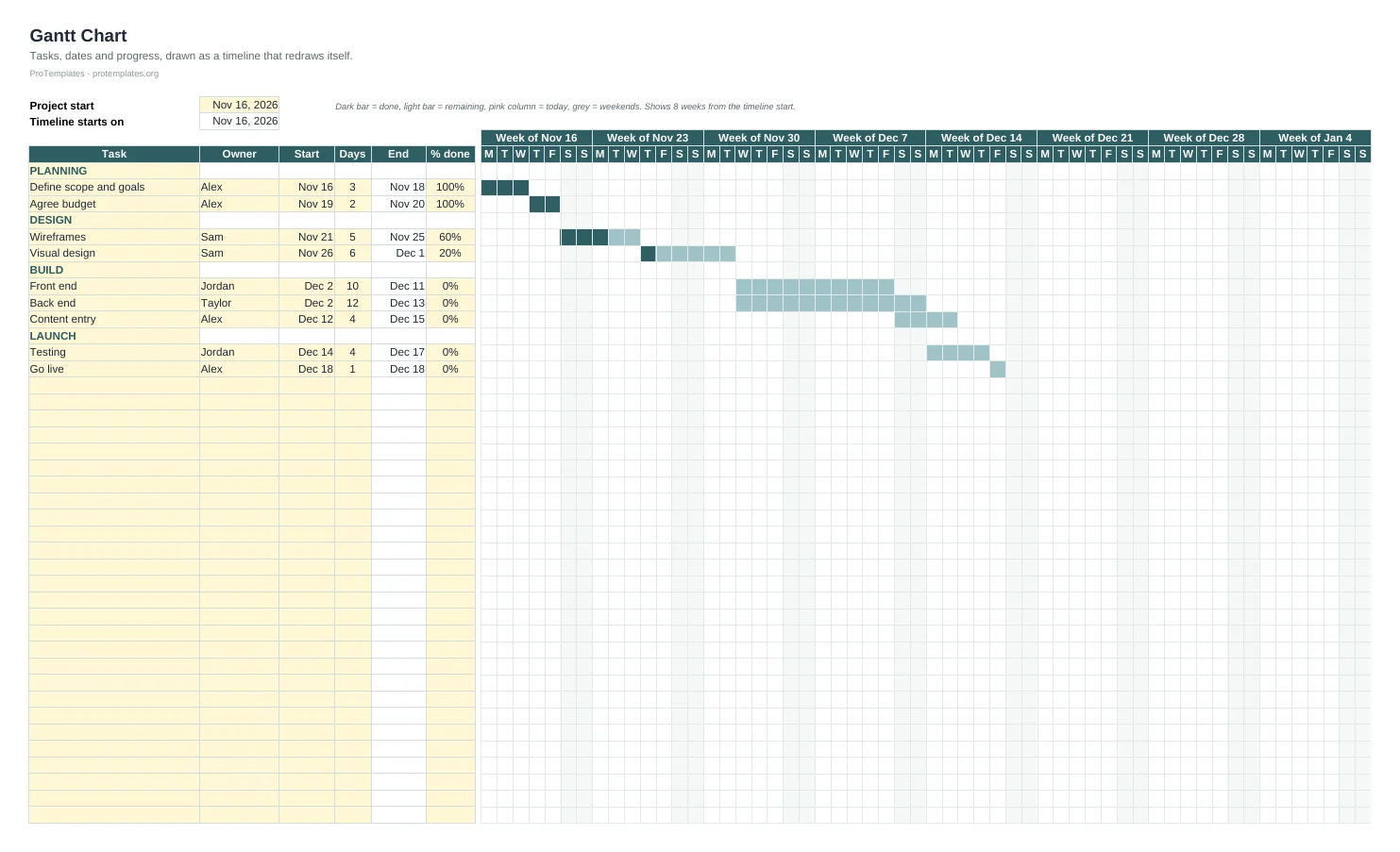
This Gantt chart template for Excel draws the timeline for you: enter each task’s start date and duration and the bar appears…
-

Project Plan Template
This project plan template captures everything a team should agree before work starts: purpose, objectives with measurable targets, scope, deliverables, milestones, roles,…
-

Project Tracker Template for Excel
This project tracker template for Excel lists every task with its owner, status, priority, dates and percentage done. Days left count down…
What makes something a project
The Project Management Institute defines a project as a temporary endeavour undertaken to create a unique product, service or result. Both words matter. Temporary means it has a start and an end. Unique means the output is new in some way, even if parts of the work are familiar.
That definition separates projects from operations. Launching a website is a project; publishing to it every week is operations. Opening a new office is a project; running it is operations. The distinction is practical: operations need routines and checklists, while projects need a plan, a schedule and someone watching the end date. If you are running ongoing processes rather than a project, our SOP template is the better tool.
Start with a project plan
A project plan is the agreement everyone works from. It does not need to be long. For most small projects two or three pages are enough, provided they answer the questions people will otherwise ask again and again.
- Objective: what the project must achieve, stated so that you can tell at the end whether it did.
- Scope: what is included and, just as important, what is not.
- Deliverables: the concrete outputs, each with a target date.
- Roles: who owns the project, who does the work and who approves it.
- Budget and resources: money, people and tools available.
- Risks: what could go wrong, how likely it is and what you will do about it.
- Communication: how and how often progress is reported.
The project plan template has a section for each of these, with short prompts so you do not stare at a blank page. Write it before work begins and ask everyone involved to read it. Agreement at this stage costs an hour; disagreement discovered halfway through costs weeks.
Write objectives you can check
“Improve the onboarding process” is a wish. “Cut the time a new customer needs to complete setup from five days to two by the end of the quarter” is an objective. A good objective names the result, gives a measure and sets a date. If you cannot measure it, write down how you will judge success instead, so there is no debate at the end.
Name one owner
Every project needs one person who is accountable for it, even when the work is shared. Every task needs one owner too. Two names next to a task usually means nobody does it.
Scope: the part that decides whether you finish
Scope is the extent of what the project will produce and the work needed to produce it. Scope creep is what happens when that extent grows without anyone adjusting the time, cost or resources to match. A paper from the PMI Global Congress lists ambiguous scope definition and the lack of any formal scope management among its top causes, and both are easy to prevent at the start.
Three habits keep scope under control:
- Write an “out of scope” list. Naming what you will not do is the fastest way to avoid arguments later.
- Route every new request through one person. The project owner decides whether it goes in, and if it does, what moves out or how the date changes.
- Keep a parking list. Good ideas that arrive mid-project go on a list for the next phase rather than into this one.
Not every change is bad. Details naturally become clearer as work progresses, and some new requests are worth the delay. The problem is change that nobody decides on.
Schedule the work with a Gantt chart
A Gantt chart turns the plan into a timeline. Each task gets its own row and a horizontal bar running from its start date to its end date. Read down the chart and you see the order of the work; read across and you see which tasks overlap and where the busy weeks are. The format is named after Henry Gantt, the American engineer who popularised it in the 1910s, and it is still the clearest way to show a schedule on one page.
To build a schedule that holds up:
- Break the work into tasks small enough to finish in a few days to two weeks. Anything longer hides problems.
- Put the tasks in the order they happen and note which ones must wait for another to finish.
- Estimate durations with the person doing the work, not for them.
- Mark milestones, such as approvals or launches, as separate rows.
- Leave a buffer before the final deadline. Something always takes longer than expected.
The Gantt chart template for Excel draws the bars for you from start dates and durations, shades progress inside each bar and highlights today and weekends, with no macros. If you would rather build one yourself, our step by step guide on how to make a Gantt chart in Excel shows the method, which Microsoft also documents using a stacked bar chart.
Track progress week by week
The schedule shows what should happen; the tracker shows what is happening. A project tracker lists every task with its owner, due date, status, priority and percentage complete. Updated once or twice a week, it is the single place anyone can check without having to ask.
The project tracker template for Excel has status and priority dropdowns, flags overdue or blocked tasks automatically and summarises progress by status. A few rules keep it reliable:
- Let task owners update their own rows. A tracker maintained by one person for everyone falls behind.
- Use “blocked” honestly. A blocked task with a note saying why is more useful than one quietly marked in progress for three weeks.
- When a date slips, change it and add a comment rather than leaving the old date in place.
- Archive finished tasks to another tab once a month so the active list stays short.
Plan for risks before they happen
A risk is anything that might happen and would hurt the project if it did: a supplier delivering late, a key person falling ill, a client changing their mind after approval. You cannot remove risk, but you can decide in advance what you will do about it, which is far easier than deciding in the middle of a crisis.
A simple risk list has four columns: the risk, how likely it is, how much damage it would do and the response. Rate likelihood and impact as low, medium or high and focus on anything that scores high on both. For each of those, choose one of four responses:
- Avoid it by changing the plan, for example by using a supplier with a better track record.
- Reduce it by acting early, such as booking a review slot with the client before the design is finished.
- Transfer it to someone better placed to handle it, through a contract or insurance.
- Accept it and keep a buffer of time or money in case it happens.
The project plan template includes a risks section for this. Review it whenever the tracker shows a task blocked or late; delays are often the first sign that a risk is turning into a problem.
Meetings, decisions and status updates
Meetings are where projects either move forward or lose a week. The difference is usually whether decisions and actions are written down while the meeting is still happening. Each action needs an owner and a date, and it should go straight into the tracker.
The meeting notes template for Notion keeps agendas, decisions and action items in one database. For tips on what to capture, read our guide on how to take meeting notes. A short weekly status update, three lines covering what was done, what is next and what is blocked, often replaces a meeting altogether.
Spreadsheet or project management software?
Dedicated project management software is excellent for large teams and many interdependent projects. For a small team running one or two projects with up to a few dozen tasks, a spreadsheet and a document are often enough, and they have real advantages:
- Everyone already knows how to use them, so there is no training or adoption problem.
- There are no seat licences to pay for.
- Files can be shared with clients or partners who do not use your tools.
- You can change the structure in seconds when the project needs it.
Move to dedicated software when you need automatic rescheduling when one task slips, workload views across several projects, or detailed permissions. Until then, keep it simple. All three ProTemplates project files open in Excel, Google Sheets, Word and Google Docs without add-ins or macros.
Common mistakes and how to avoid them
- Starting without a plan. Even a one-page plan prevents the most expensive misunderstandings.
- Tasks that are too big. “Build the website” is not a task. “Write the home page copy” is.
- Optimistic estimates. Add time for review, feedback and the things nobody thought of.
- A tracker nobody updates. Set a fixed time each week for updates and keep it.
- No closing review. When the project ends, spend thirty minutes on what worked and what did not, and store the notes with the plan for next time.
That last habit fits naturally into a regular weekly review, which is also a good moment to check the tracker.
Guides
- How to Make a Gantt Chart in Excel (Step by Step)
Excel has no built-in Gantt chart, but a stacked bar chart with the first series hidden gives you one. Here is the full method, plus the fixes for the date axis problems that trip most people up.
Questions
Which template should I use first?
The project plan. Agreeing objectives and scope first saves more time than any schedule or tracker.
Can the Gantt chart handle dependencies?
It shows start dates and durations, and you set a dependent task to start when the previous one ends. It does not reschedule tasks automatically when one slips.
What is the difference between a Gantt chart and a project tracker?
The Gantt chart shows the schedule as a timeline. The tracker lists tasks with owners, status and progress. Most projects benefit from both: the chart for planning, the tracker for running the work.
Do the templates work in Google Sheets and Google Docs?
Yes. The spreadsheets are standard .xlsx files and the plan is a standard document, so they open in Google Sheets and Google Docs as well as Excel and Word.
Are they free for commercial use?
Yes. Every template on this page is free to download and use, including for client work.