
Notion suits the kind of work that mixes structured data with notes: a meeting with its decisions, a procedure with its steps, a new hire with their checklist, a post with its caption and status. A good Notion template gives you that structure ready to use, with the databases, views and sample entries already set up, so you can start working instead of building.
This guide explains how to duplicate a Notion template into your workspace, how the databases and views behind each one work, which template fits which job, and how to adapt and share them without breaking anything. Every Notion template on ProTemplates works on Notion’s free plan.
All Notion templates
-
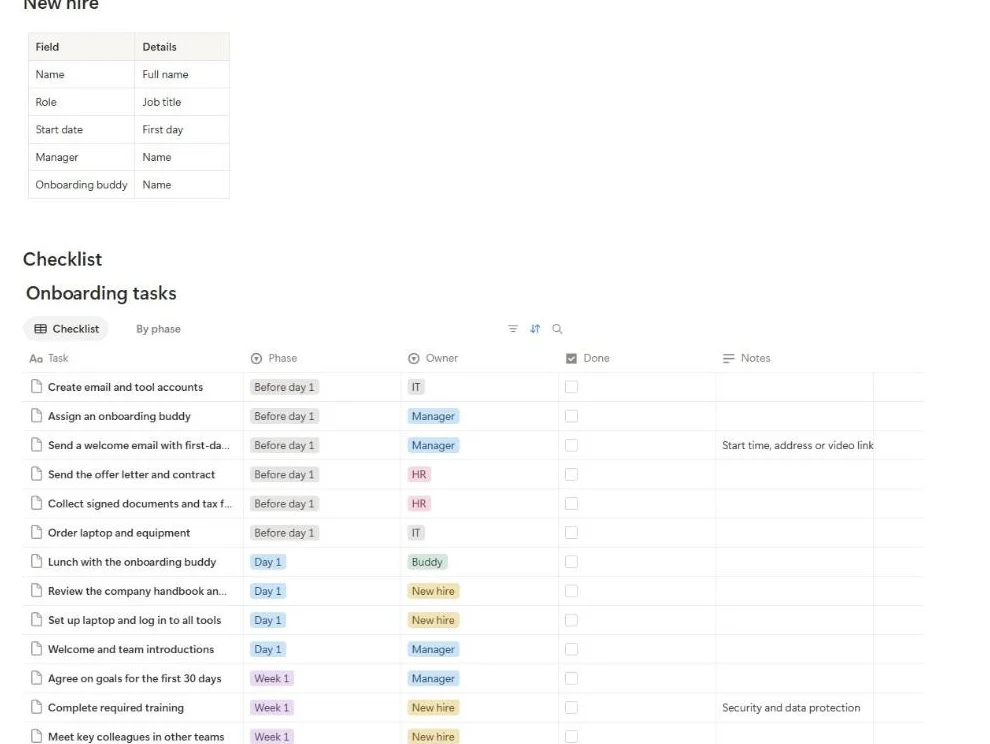
Employee Onboarding Checklist Template for Notion
This free employee onboarding checklist template for Notion lists 18 tasks from before the first day to the 90-day review. Each task…
-

Habit Tracker Template for Notion
This free habit tracker template for Notion turns each day into one row with a checkbox per habit. A Score column works…
-
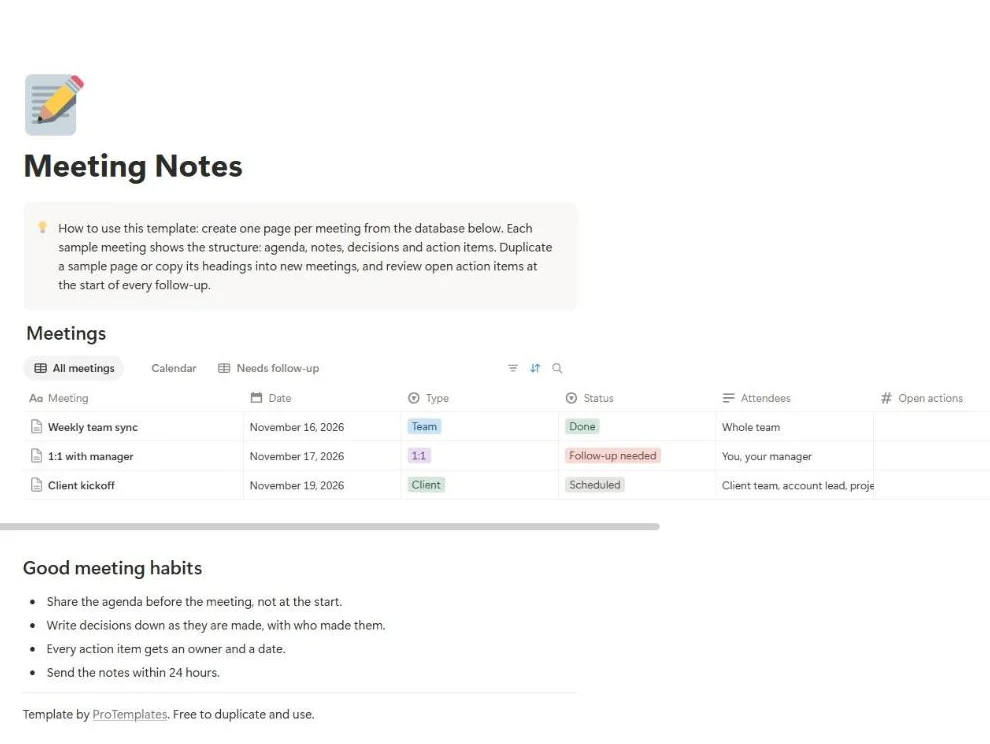
Meeting Notes Template for Notion
This free meeting notes template for Notion gives every meeting the same four parts: agenda, notes, decisions and action items. Each meeting…
-
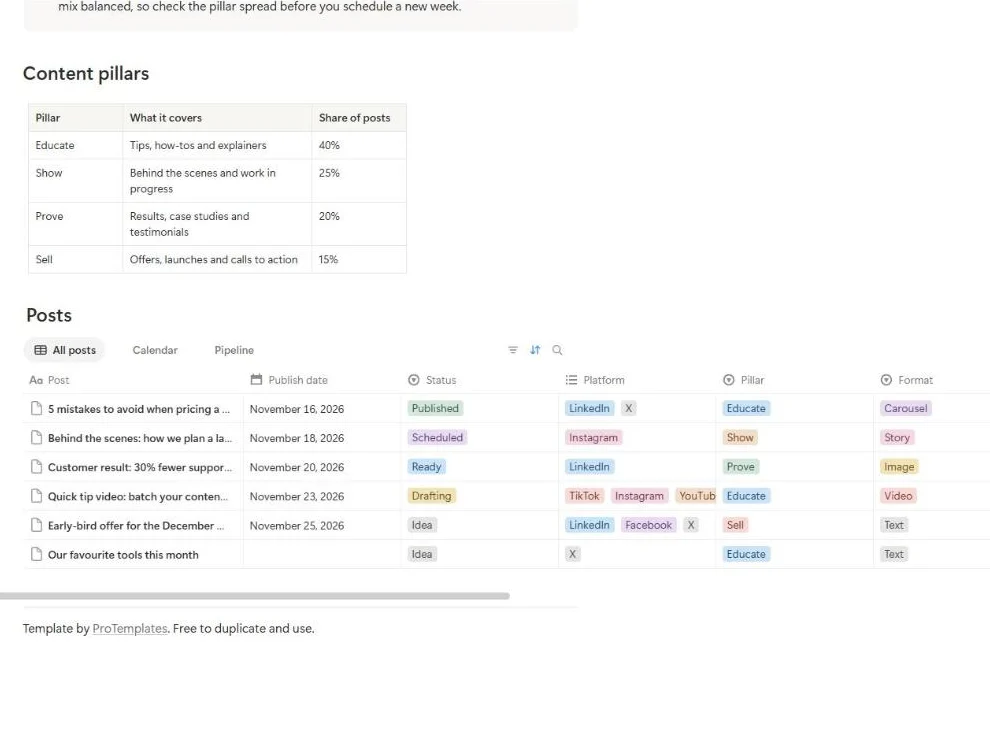
Social Media Calendar Template for Notion
This free social media calendar template for Notion plans every post in one database, with its publish date, platforms, content pillar, format…
-

Standard Operating Procedure Template for Notion
This free standard operating procedure template for Notion keeps every SOP in one library, with its department, owner, status, version and next…
-
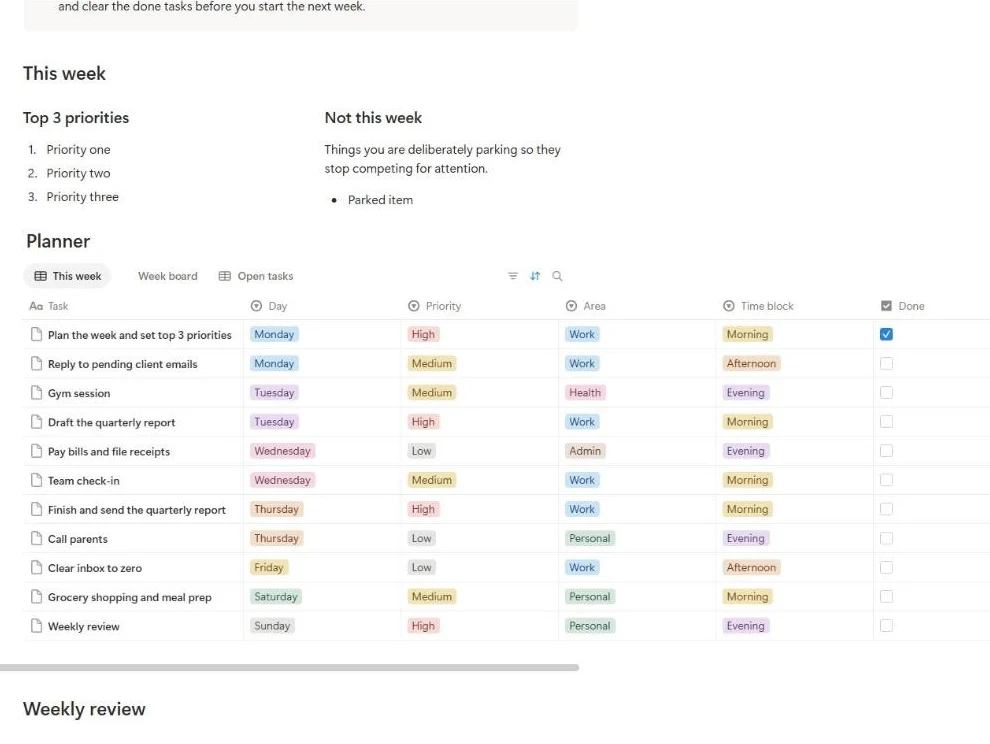
Weekly Planner Template for Notion
This free weekly planner template for Notion keeps the whole week on one page. You set three priorities, park what can wait,…
Why Notion works for templates
A spreadsheet is a grid of cells; a Notion database is a collection of pages. Every row in a Notion table is a page you can open and fill with text, checklists, images and files, and the same data can be shown as a table, a board, a calendar or a list. That combination is what makes Notion good for processes that need both tracking and writing.
- Structure and notes together. A meeting entry holds its date and attendees as properties and the agenda and decisions as page content.
- Several views of one source. The same tasks can appear by day, by status or by person without copying anything.
- Easy to share. Pages can be shared with a team or a single person, with different access levels.
- Works everywhere. In the browser, the desktop app and the mobile apps.
How to duplicate a Notion template
ProTemplates Notion templates are public pages that you copy into your own workspace. According to Notion’s help centre, the process is:
- Log into Notion in your browser.
- Open the template link and click Duplicate in the upper right corner.
- Choose the workspace you want to copy it into.
The copy appears in your workspace with all its sub-pages, and from that point it is yours to edit, share or delete. You need a Notion account, which is free. ProTemplates has no access to your copy or anything you add to it.
Databases and views: the idea behind every template
Every template on this page is built around one or more databases. Understanding three ideas makes them much easier to use and adapt.
- Properties are the fields each entry has, such as date, status, owner, priority or platform. They are what you sort, filter and group by.
- Views are different ways of showing the same database. A table for editing many entries, a board for moving items between stages, a calendar for anything with a date, a list for quick reading.
- Filters and sorts are saved inside each view, so one view can show only open tasks and another only this week, without affecting the data.
When you change an entry in one view, it changes everywhere, because there is only one database underneath. That is why you should never copy entries between views to “move” them; change a property instead.
Notion templates by job
Planning and productivity
- The weekly planner holds three priorities and a “not this week” list, a planner database with day, priority, area and time block, views by day, a board by day and open tasks, and a three-question weekly review.
- The meeting notes template lays out each meeting as agenda, notes, decisions and action items, with views for all meetings, a calendar and meetings needing follow-up.
- The habit tracker logs five daily habits with a score showing the share completed each day, plus log and calendar views.
Operations and HR
- The SOP library stores procedures with department, owner role, status, version and review dates, with a complete sample SOP for processing a refund.
- The employee onboarding checklist sets out 18 tasks across five phases, from before day one to 90 days, each with an owner.
Marketing
- The social media calendar plans posts with date, status, platforms, content pillar, format, caption and link, in calendar, pipeline board and list views.
For the thinking behind each one, see the productivity, operations, HR and sales and marketing guides.
Customising a template safely
Templates are meant to be adapted. A few habits keep the views and formulas working while you do:
- Start with the sample entries. Open them to see how the template is meant to be used, then delete them or overwrite them with your own.
- Rename before you delete. If a property does not fit, renaming it keeps any views and formulas that use it working. Deleting it may break a filter or a formula.
- Edit select options in one place. Change status or category options from the property settings, so every entry and view updates together.
- Add views rather than changing the originals. Create your own view for a new need and leave the built-in ones as they are until you know you do not need them.
- Check formulas after renaming. Formulas that refer to a property by name usually update automatically, but it is worth opening them once to confirm.
Some templates explain how to extend them. The habit tracker, for example, lets you track more than five habits by adding a checkbox property, including it in the score formula and changing the divisor.
Using Notion templates with a team
Several Notion templates are built to be shared: meeting notes with attendees, the SOP library with the whole team, the onboarding checklist with everyone who owns a task, the social media calendar with whoever drafts and approves posts.
- Share the page, not copies. Use Share to invite people so everyone works in the same database.
- Give the right access. Full access only for those who manage the template; edit or comment access for others; view-only for people who just need to read.
- Lock the structure when it is settled. Notion lets you lock a database so its properties and views cannot be changed by accident, while people can still edit the entries.
- Agree a rhythm. When meeting notes are written, when SOPs are reviewed, when the social calendar is planned. The template holds the work; the rhythm keeps it current.
Connecting templates together
Notion’s relation property links entries in different databases. Once you are comfortable with the templates, links can save time: an action item in meeting notes related to a task in your weekly planner, or an onboarding task related to the SOP that explains it. A simpler approach is to paste a link to the related page in the entry.
Start without connections and add them only when you notice yourself repeatedly looking for the same related page. A few well-chosen links are more useful than a web of relations nobody maintains.
Keep a template tidy over time
A Notion workspace grows quickly. After a few months, a meeting database can hold hundreds of entries and a planner thousands of finished tasks. That is fine for Notion, but it slows people down when every view is crowded. A little housekeeping keeps templates pleasant to use.
- Filter views to what is current. Show only open tasks, this week’s plan or meetings from the last month in the everyday views, and keep an “All” view for searching history.
- Archive instead of deleting. Add an Archived checkbox or status and filter it out of everyday views. History stays searchable without getting in the way.
- Review the structure each quarter. Remove properties nobody fills in and views nobody opens.
- Keep the instructions on the page. A short note at the top explaining how the template is used helps new people and your future self.
The weekly planner already suggests clearing finished tasks at the end of each week; the same habit works for every template here.
Notion or a spreadsheet?
ProTemplates offers both formats because they suit different work.
- Choose Notion when each item needs notes or steps as well as fields, when you want boards and calendars of the same data, or when you already work in Notion.
- Choose a spreadsheet when the work is mainly numbers and calculations, such as budgets, cash flow, timesheets or a financial model, or when you need a file you can send, print or open offline anywhere.
Many people use both: the budget and cash flow in a spreadsheet, the weekly plan and meeting notes in Notion. See the Excel and Google Sheets guides for the spreadsheet side.
Common mistakes and simple fixes
- Editing the public page instead of your copy. Changes only stick in your workspace. Duplicate first, then edit.
- Too many properties. Every extra field is something to fill in. Remove what you do not use.
- Duplicating databases to make new views. Create a new view of the same database instead, so the data stays in one place.
- Leaving sample entries in place. They confuse counts, filters and other people. Delete them once you have seen how the template works.
- No owner. Shared templates drift without one person responsible for structure and tidiness.
Guides
- The Weekly Review: A 30-Minute Routine That Works
A weekly review is a fixed half hour to empty your head, bring your lists up to date and choose what matters next week. It comes from David Allen's Getting Things Done, and it works without any special app.
- Employee Onboarding Checklist: What to Include
A good onboarding checklist starts before the first day and runs for at least 90 days. Here is what to include in each phase, who should own each item and the mistakes that make new hires leave early.
Questions
How do I duplicate a template?
Log into Notion in your browser, open the template link, click Duplicate in the upper right corner and choose your workspace. You need a Notion account, which is free.
Do the templates need a paid Notion plan or Notion AI?
No. They use standard pages, databases, formulas and views from the free plan.
Will you see my data?
No. The duplicate lives in your workspace and ProTemplates has no access to it.
Can I use the templates on my phone?
Yes. Once duplicated, they work in the Notion mobile apps, which is useful for ticking habits or checking today’s plan.
What if a view stops showing entries?
Check the view’s filters and sorts. A filter on a property you renamed or an option you deleted is the most common cause.